DMARC Failed: 7 Common Causes and How to Fix Them
In May 2025, Microsoft began rejecting emails that fail DMARC checks with error code 550 5.7.515. If you have seen “sending domain does not meet the required authentication level” in your bounce logs, you are dealing with a DMARC failure — and you are not alone.
Google and Yahoo reached full enforcement in November 2025, blocking bulk senders who lack proper SPF, DKIM, and DMARC configuration. Microsoft followed with outright rejection for consumer Outlook domains. The era of optional email authentication is over.
But DMARC failures do not always mean your configuration is wrong. Email forwarding, third-party sending services, and alignment nuances cause legitimate messages to fail DMARC every day. A marketing email sent through Mailchimp or a transactional receipt routed through SendGrid can pass SPF and DKIM individually yet still fail DMARC because of a domain mismatch the sender never knew existed.
According to Validity’s analysis of 22 million sending domains, 84% have no DMARC record at all (Validity, November 2024). Among those that do, alignment issues — not missing records — are the leading cause of failure.
By the end of this guide, you will understand how to read DMARC aggregate reports, identify which of the seven most common failure causes applies to your domain, and implement platform-specific fixes for Google Workspace, Microsoft 365, and popular ESPs like SendGrid, Mailchimp, and Amazon SES.
If you are starting from scratch, our DMARC setup guide walks through initial configuration. This guide focuses on diagnosing and fixing failures after your record is already published.
What Is a DMARC Failure?
DMARC stands for Domain-based Message Authentication, Reporting & Conformance, defined in RFC 7489. It builds on two existing protocols — SPF and DKIM — by adding a critical layer: alignment. (Note: DMARCbis, the successor to RFC 7489, is in the final stages of IETF publication as of 2026. The core alignment and policy mechanisms described in this guide remain unchanged.)
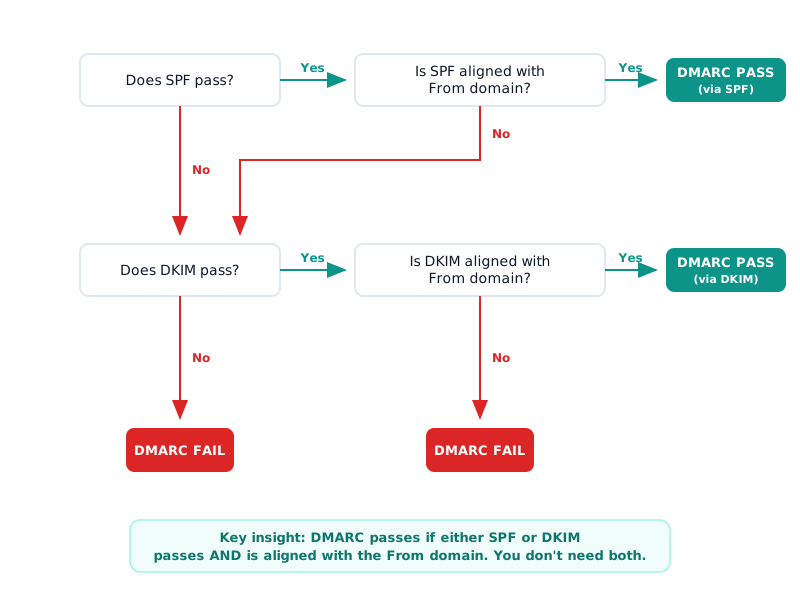
SPF and DKIM can both pass their individual checks, yet DMARC can still fail. That is because DMARC does not just check whether authentication succeeded — it checks whether the authenticated domain matches the domain in the From header your recipient sees.
When you receive an email, the receiving server adds an Authentication-Results header that looks like this:
Authentication-Results: mx.google.com;
  dmarc=fail (p=QUARANTINE dis=none) header.from=example.com;
  spf=pass smtp.mailfrom=bounces.esp.com;
  dkim=pass header.d=esp.com
In this example, SPF passed (the sending IP is authorized by bounces.esp.com) and DKIM passed (the signature matches esp.com). But DMARC failed because neither bounces.esp.com nor esp.com aligns with the From domain example.com.
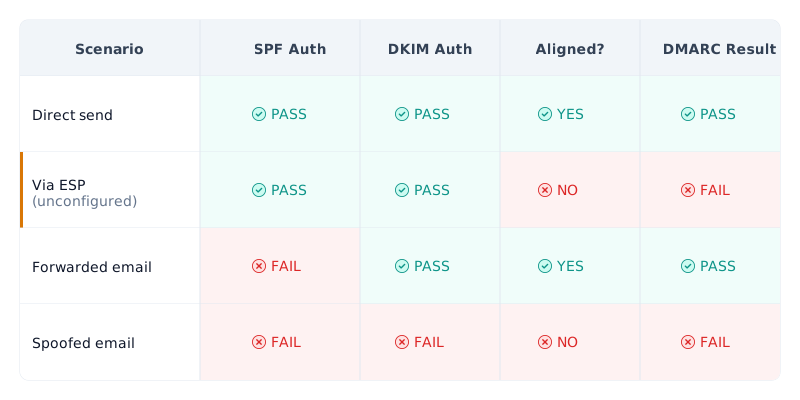
DMARC has three possible outcomes:
- Pass — at least one of SPF or DKIM both passed and is aligned with the From domain
- Fail — neither SPF nor DKIM passed with alignment
- None — no DMARC record exists for the domain
A DMARC failure does not automatically mean the message is blocked. The outcome depends on your p= policy tag:
- With
p=none, receivers only report failures. - With
p=quarantine, they route failing messages to spam. - With
p=reject, they block them outright.
Google reported 265 billion fewer unauthenticated messages in 2024 — a 65% reduction — after enforcing authentication requirements for bulk senders (Google/M3AAWG, October 2024). That enforcement is what makes understanding DMARC failures urgent: receivers are now acting on your policy.
You can check your DMARC record with our free DMARC checker to see your current policy, alignment settings, and whether aggregate reports are configured.
The 7 Most Common Causes of DMARC Failures
Before diving into each cause, here is the full list. Most domains encounter one or two of these; complex environments may face several simultaneously.
- Domain alignment failures — SPF or DKIM passes, but the authenticated domain does not match the From header
- Third-party email services not configured — Mailchimp, SendGrid, HubSpot, or other services send on your behalf without proper SPF/DKIM setup
- Email forwarding breaks SPF — forwarded messages change the sending IP, invalidating SPF
- Missing or misconfigured DKIM keys — selector typos, key rotation gaps, or DNS propagation delays
- SPF 10-lookup limit exceeded — too many
include:mechanisms cause a PermError - DMARC record syntax errors — typos, missing tags, or invalid values prevent policy parsing
- Subdomain policy inheritance — subdomains inherit the parent domain’s strict policy unexpectedly
Understanding why DMARC is failing requires knowing which of these causes applies to your situation. The diagnostic approach is the same every time: check your aggregate reports, identify the failing sending source, and trace the authentication chain.
DMARCguard’s sender identification feature names your sending sources — you see “Mailchimp” or “Amazon SES” instead of raw IP addresses — which cuts diagnostic time from hours to minutes.
Cause #1 — Domain Alignment Failures
This is the most common DMARC failure and the most misunderstood. Your SPF check passes, your DKIM check passes, but DMARC still fails. The reason: alignment.
RFC 7489 Section 3.1 defines two types of alignment (see our DMARC protocol guide for the full specification breakdown):
SPF alignment requires the domain in the Return-Path header (also called the envelope sender or smtp.mailfrom) to match the domain in the From header. If your From address is [email protected] but the Return-Path is [email protected], SPF passes for sendgrid.net but is not aligned with example.com.
DKIM alignment requires the d= domain in the DKIM signature to match the From header domain. If the DKIM signature uses d=sendgrid.net but the From header says example.com, DKIM passes but is not aligned.
DMARC supports two alignment modes, controlled by the aspf= and adkim= tags:
- Relaxed (
aspf=r, the default): organizational domain match.mail.example.comaligns withexample.com. - Strict (
aspf=s): exact domain match only.mail.example.comdoes not align withexample.com.
Consider a real-world scenario: you send transactional emails through SendGrid. The email From header shows [email protected], but SendGrid sets the Return-Path to [email protected] and signs with d=sendgrid.net.
Both SPF and DKIM pass for SendGrid’s domain, but neither is aligned with example.com. Result: SPF and DKIM pass but DMARC fails.
How to fix alignment failures:
- Configure DKIM with your own domain at the ESP. Most ESPs support custom DKIM signing where
d=example.cominstead ofd=esp.com. This is the preferred fix because it survives forwarding. - Set up a custom Return-Path at the ESP. SendGrid calls this “Authenticated Domain,” Mailchimp calls it “Verified Sending Domain.” This aligns SPF with your From domain.
- Check your alignment mode. If you switched from
aspf=rtoaspf=s(strict), subdomains no longer align with the organizational domain. Unless you have a specific reason for strict alignment, keep the default relaxed mode.
You only need one mechanism (SPF or DKIM) to be aligned for DMARC to pass. Most ESP configurations rely on DKIM alignment because it is more resilient to forwarding and does not depend on the Return-Path.
Cause #2 — Third-Party Email Services Not Configured
This is the most common failure for organizations deploying DMARC for the first time. Marketing platforms, CRMs, ticketing systems, and transactional email services all send messages using your domain in the From header. If they are not authorized in your SPF record and do not have DKIM selectors configured, every message they send will fail DMARC.
Each third-party service requires three things:
- An SPF
include:mechanism in your DNS record - DKIM selectors added to your DNS
- Your custom domain configured as the sending domain inside the service
Here are the DNS configurations for the most common platforms:
| Service | SPF Include | DKIM Setup |
|---|---|---|
| Mailchimp | include:servers.mcsv.net | 3 CNAME selectors (k1, k2, k3) |
| SendGrid | include:sendgrid.net | Authenticated Domain (2 CNAMEs) |
| Amazon SES | include:amazonses.com | Easy DKIM (3 CNAME records) |
| HubSpot | include:_spf.hubspotemail.net | 2 DKIM CNAME records |
| Salesforce Marketing | include:exacttarget.com | Custom sender profile |
A cautionary case study: the UK National Health Service delayed DMARC enforcement on NHSmail for six months because local NHS trusts had not configured third-party clinical email systems. The delay left the nhs.net domain vulnerable to spoofing throughout that period, with patient care communications at risk (Digital Health News, January 2020).
How to discover unknown senders: Parse your DMARC aggregate reports. Every receiver that processes your email (Gmail, Outlook, Yahoo) sends daily XML reports listing every IP address that sent mail using your domain. Look for rows where dmarc=fail — the <source_ip> field tells you which server sent the message. Reverse DNS lookup on that IP often reveals the sending service.
If you see a SendGrid DMARC fail in your reports, configure your Authenticated Domain in SendGrid’s dashboard and add the required DNS records. The same pattern applies to every ESP: identify the source, then add SPF and DKIM records for that service.
Cause #3 — Email Forwarding Breaks SPF
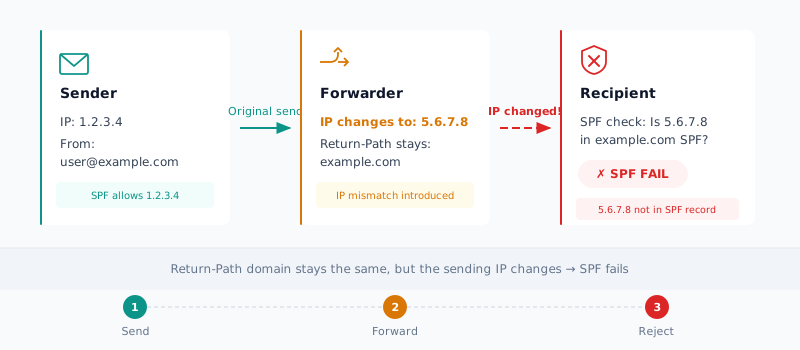
Email forwarding is a protocol-level problem that no amount of configuration on your side can fully prevent. When someone forwards your email — through a university alumni address, a personal Gmail rule, or a corporate mail relay — the sending IP changes to the forwarder’s server, but the Return-Path stays yours.
The receiving server performs an SPF check: “Is this IP authorized to send for example.com?” The forwarder’s IP is not in your SPF record, so SPF fails. If the forwarder also modifies the message — adding a footer, changing headers, or altering the subject line — the DKIM signature invalidates too. Both mechanisms fail, and DMARC fails with them.
This is precisely what happened in April 2014 when Yahoo and AOL published p=reject for their consumer domains. Thousands of mailing lists globally broke overnight — every email from an @yahoo.com or @aol.com user sent through a mailing list was rejected by receiving servers worldwide.
The Mailman project had to release version 2.1.16 with DMARC compatibility features that rewrote the From header. The IETF documented the collateral damage in RFC 7960 (PCWorld, April 2014).
Fixes for forwarding-related DMARC failures:
- Rely on DKIM alignment. If your DKIM signature survives forwarding (the message was not modified), DMARC passes via DKIM even though SPF fails. This is why DKIM alignment is the preferred authentication mechanism for most organizations.
- SRS (Sender Rewriting Scheme): Forwarders can rewrite the Return-Path to their own domain, which fixes SPF at the cost of rewriting the envelope sender. Many mail servers support SRS natively.
- For mailing list operators: Modern list software (Mailman 3, Sympa) supports DMARC mitigations — either rewriting the From header or wrapping the original message.
How to diagnose forwarding failures: In your aggregate reports, look for dmarc=fail entries where the <source_ip> belongs to Google, Microsoft, or another major provider. Low message counts (1-5 messages) from these IPs almost always indicate forwarding, not spoofing. High counts (thousands) from unknown IPs suggest an actual spoofing attempt.
DMARCguard is the only DMARC monitoring tool that natively supports ARC chain analysis. You can trace exactly where in the forwarding chain authentication broke, and whether the ARC seal was valid — giving you confidence to distinguish legitimate forwards from spoofing attempts.
Cause #4 — Missing or Misconfigured DKIM Keys
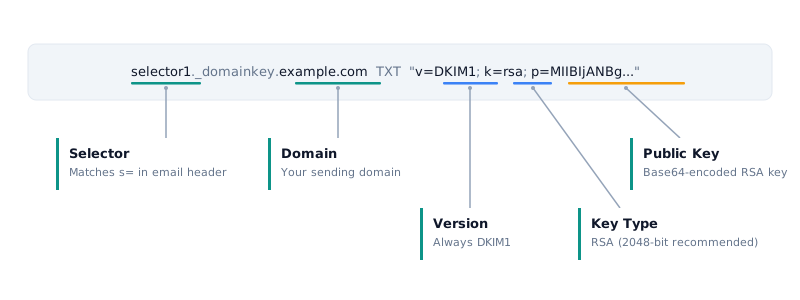
DKIM (RFC 6376) works by signing outgoing messages with a private key stored on your mail server and publishing the corresponding public key in DNS. When these two halves get out of sync, DMARC verification fails.
Common DKIM failures:
- Key rotation not synced. You generated a new private key but did not update the DNS TXT record (or vice versa). The signature references a public key that no longer matches.
- Selector typo. The email header references
s=selector1but your DNS record is published atselector2._domainkey.example.com. One character difference causes a complete failure. - DNS propagation delay. You added the DKIM TXT record, but it has not propagated globally yet. This typically resolves within 24-48 hours.
- Key length too short. RSA keys shorter than 1024 bits are deprecated. The recommended minimum is 2048 bits (RFC 8301, which updates RFC 6376). Some older configurations still use 512-bit or 1024-bit keys.
How to diagnose DKIM issues:
dig selector1._domainkey.example.com TXT +shortIf the response is NXDOMAIN, the selector does not exist in DNS. If it returns a record, verify the p= value (public key) matches your server configuration and that the key length is 2048 bits.
Platform-specific DKIM setup:
Google Workspace: Admin Console > Apps > Google Workspace > Gmail > Authenticate Email. Generate a new DKIM key (select 2048-bit), copy the TXT record, add it to your DNS, then click “Start Authentication.”
Microsoft 365: Microsoft Defender portal > Email & collaboration > Policies & rules > Threat policies > Email authentication settings. Select your domain, enable DKIM, and copy the two CNAME records (selector1._domainkey and selector2._domainkey) to your DNS.
Self-hosted (Postfix with OpenDKIM):
opendkim-genkey -d example.com -s selector1 -b 2048This generates selector1.private (private key) and selector1.txt (DNS record). Add the TXT record to DNS and configure OpenDKIM to sign with the private key.
You can verify your DKIM configuration with our free DKIM checker, which validates the selector, key length, and DNS record format.
Cause #5 — SPF 10-Lookup Limit Exceeded
RFC 7208 Section 4.6.4 imposes a hard limit: SPF evaluation must not require more than 10 DNS lookups. Every include:, a, mx, ptr, exists, and redirect= mechanism counts as one lookup. When you exceed 10, the SPF result is PermError — a permanent error that causes SPF to fail, which in turn causes DNS authentication DMARC fail if DKIM is also not aligned.
The limit gets hit fast:
| Service | Lookups | Running Total |
|---|---|---|
| Google Workspace | 2 | 2 |
| Mailchimp | 3 | 5 |
| HubSpot | 3 | 8 |
| Zendesk | 2 | 10 |
| Salesforce | 3 | 13 |
At 13 lookups, SPF returns PermError. Every message evaluated against this record fails SPF regardless of whether the sending IP is authorized.
From our scan of 5.5 million Tranco domains, 4.8% of SPF-enabled domains (148,655 of 3,077,219) exceed the 10-lookup limit (DMARCguard Scanner, February 2026). That is 148,655 domains where SPF is effectively broken.
How to diagnose:
dig example.com TXT +short | grep spfThen recursively check each include: domain. Count every include:, a, mx, redirect=, and exists: mechanism across all nested records. Our free SPF checker automates this and flags lookup limit violations instantly.
Fixes:
- Remove unused includes. Audit your SPF record. If you discontinued a service six months ago, remove its
include:. This is the lowest-effort, highest-impact fix. - Use IP addresses. Replace
include:mechanisms withip4:orip6:entries where the service uses stable IP ranges. IP mechanisms do not count toward the 10-lookup limit. Only do this for services with published, stable IP ranges. - Subdomain splitting. Move some services to subdomains. Marketing emails send from
marketing.example.comwith its own SPF record, transactional emails fromnotify.example.com. Each subdomain gets its own 10-lookup budget. - SPF flattening (use with caution). Flattening replaces
include:mechanisms with hardcoded IP addresses. The risk: when the service provider changes their IPs, your SPF record breaks silently. If you flatten, you need automated monitoring to detect IP changes.
A frequent question from administrators: “Is SPF flattening safe?” The pragmatic answer is no — it trades one problem (lookup limit) for another (maintenance burden). Subdomain splitting is more durable and does not require ongoing monitoring.
For a deeper dive into SPF PermError — all five root causes, diagnostic steps, and platform-specific fixes — see our dedicated SPF PermError troubleshooting guide.
Cause #6 — DMARC Record Syntax Errors
A DMARC record is a DNS TXT record published at _dmarc.example.com. It uses a tag-value format defined in RFC 7489 Section 6.3. Syntax errors prevent receiving servers from parsing your policy, which means the DMARC policy is effectively not enabled — even though a record technically exists.
Common syntax errors:
Missing v=DMARC1 tag. This must be the first tag in the record. Without it, receivers ignore the entire record.
_dmarc.example.com TXT "p=reject; rua=mailto:[email protected];"_dmarc.example.com TXT "v=DMARC1; p=reject; rua=mailto:[email protected];"Invalid policy value. Only three values are valid: none, quarantine, reject. A typo like p=block or p=deny is treated as no policy.
Multiple DMARC records. Only one TXT record is allowed at _dmarc.example.com. If two records exist, receivers treat it as ambiguous and apply no policy.
Missing mailto: prefix in rua/ruf. The report address must use the mailto: URI scheme:
rua=mailto:[email protected]Missing semicolons. Tags must be separated by semicolons. Some DNS providers strip trailing semicolons, which can break parsing.
Spaces within tag values. Tags like pct = 50 (with spaces around =) may cause parsing failures depending on the receiver.
Oracle once published an SPF record with a syntax error — missing whitespace between IP addresses — causing authentication failures for their customers. The fix was quick, but as DMARC Advisor noted, “it can occur over a much longer timeframe, increasing the damage.”
A correct, complete DMARC record looks like this:
_dmarc.example.com TXT "v=DMARC1; p=quarantine; sp=none; rua=mailto:[email protected]; ruf=mailto:[email protected]; pct=100; adkim=r; aspf=r;"Use our free DMARC checker to validate your record syntax, identify missing tags, and generate a corrected record if needed.
Cause #7 — Subdomain Policy Inheritance
By default, subdomains inherit the parent domain’s DMARC policy unless they have their own record published at _dmarc.subdomain.example.com. This catches many organizations off guard when they move to enforcement.
The sp= tag in the parent record controls subdomain policy separately:
_dmarc.example.com TXT "v=DMARC1; p=reject; sp=quarantine; rua=mailto:[email protected];"Without sp=, subdomains inherit the p= value. If your root domain has p=reject and marketing.example.com sends bulk email through Mailchimp, those messages hit the reject policy. Your marketing team’s email deliverability tanks and they may not realize why — the DMARC quarantine or reject policy is not enabled at the subdomain level, but it is inherited from the parent.
How to diagnose subdomain failures: Check your aggregate reports for the <header_from> field. If it shows a subdomain (e.g., newsletter.example.com) and the disposition is reject, that subdomain is inheriting the parent’s strict policy.
Fixes:
- Publish an explicit subdomain DMARC record. Create
_dmarc.marketing.example.comwith its own policy. This overrides inheritance.
_dmarc.marketing.example.com TXT "v=DMARC1; p=none; rua=mailto:[email protected];"- Use
sp=noneorsp=quarantinein the parent record. This gives subdomains a softer policy while the root domain enforcesp=reject. - Audit all subdomains that send email before enforcing
p=rejectat the root. Check DNS for any subdomain with MX records or SPF records. If it sends mail, it needs its own DMARC configuration or you need to verify its authentication chain.
A common question from administrators: “Why does my DMARC report show failures from subdomains I do not use?” Two possibilities: either spoofers are targeting unused subdomains (common for phishing), or forgotten internal systems are still sending from those subdomains. Either way, subdomain-specific DMARC records at p=reject protect unused subdomains from abuse.
How to Read DMARC Aggregate Reports to Diagnose Failures
DMARC aggregate reports (RUA) are XML files that receivers — Gmail, Outlook, Yahoo, and others — send to the rua= address in your DMARC record. They arrive daily and contain a structured summary of every message that claimed to be from your domain.
Understanding these reports is the single most important skill for diagnosing DMARC failures. A simplified report looks like this:
<feedback>
  <policy_published>
    <domain>example.com</domain>
    <p>quarantine</p>
    <sp>none</sp>
    <pct>100</pct>
  </policy_published>
  <record>
    <row>
      <source_ip>198.51.100.42</source_ip>
      <count>1523</count>
      <policy_evaluated>
        <disposition>none</disposition>
        <dkim>fail</dkim>
        <spf>fail</spf>
      </policy_evaluated>
    </row>
    <identifiers>
      <header_from>example.com</header_from>
    </identifiers>
    <auth_results>
      <spf>
        <domain>bounces.esp.com</domain>
        <result>pass</result>
      </spf>
      <dkim>
        <domain>esp.com</domain>
        <result>pass</result>
      </dkim>
    </auth_results>
  </record>
</feedback>
Key elements to examine:
<policy_published>— your current DMARC policy as seen by the receiver<source_ip>— the IP address that sent the messages<count>— how many messages came from this IP<policy_evaluated>— whether SPF and DKIM passed alignment (not just authentication)<auth_results>— raw SPF and DKIM results with the domains they authenticated against<header_from>— your domain in the From header
Diagnostic workflow:
- Find the
failrows. Look for<dkim>fail</dkim>or<spf>fail</spf>under<policy_evaluated>. - Identify the source IP. Run a reverse DNS lookup:
dig -x 198.51.100.42. This often reveals the sending service (e.g.,o1.sendgrid.net). - Check
<auth_results>. If<spf><result>pass</result>but<spf>under<policy_evaluated>showsfail, the issue is alignment — Cause #1. - Assess the volume. A
<count>of 1-5 from Google or Microsoft IPs is almost certainly forwarding (Cause #3). A<count>of thousands from an unknown IP may indicate spoofing or an unconfigured third-party service (Cause #2).
Forwarders vs. threats: Seeing Google and Microsoft IPs in your failure reports does not mean someone is spoofing your domain from those providers. It almost always means someone forwarded your email through Gmail or Outlook. The low message count is the telltale sign.
DMARCguard automatically identifies sending sources by name — you see “Mailchimp” or “SendGrid” instead of raw IP addresses. This eliminates the manual reverse DNS step and makes the DMARC failed meaning immediately clear from your dashboard.
Aggregate reports conform to the format defined in RFC 7489 Appendix C. Reading raw XML at scale is impractical, which is why most organizations use a monitoring tool to parse and visualize the data.
Step-by-Step Fixes for Google Workspace and Microsoft 365
These two platforms account for the majority of business email. Each has specific quirks in how it handles DMARC.
Google Workspace
Enable DMARC for Google Workspace
- Enable SPF. Add the following to your domain’s SPF record:
v=spf1 include:_spf.google.com ~all. Google Workspace automatically aligns the Return-Path with your domain, so SPF alignment works out of the box. - Enable DKIM. Go to Admin Console > Apps > Google Workspace > Gmail > Authenticate Email. Select your domain, choose 2048-bit key length, and generate the record. Copy the TXT record and add it to your DNS at the selector Google provides (typically
google._domainkey.example.com). Return to the Admin Console and click “Start Authentication.” - Publish your DMARC record. Add a TXT record at
_dmarc.example.comwith valuev=DMARC1; p=none; rua=mailto:[email protected]; - Monitor for 1-2 weeks. Review aggregate reports to identify unknown senders. Authorize any legitimate third-party services.
- Enforce gradually. Change
p=nonetop=quarantine. After another week of clean reports, move top=rejectwithpct=10(only 10% of failing messages are rejected). Increasepctin increments until you reachpct=100.
For full details, see Google’s DMARC configuration guide.
Microsoft 365
Enable DMARC for Microsoft 365
- Enable SPF. Add to your SPF record:
v=spf1 include:spf.protection.outlook.com ~all - Enable DKIM. Go to Microsoft Defender portal > Email & collaboration > Policies & rules > Threat policies > Email authentication settings. Select your domain, enable DKIM, and copy the two CNAME records (
selector1._domainkeyandselector2._domainkey) to your DNS. Enable DKIM signing in the Defender portal. - Publish your DMARC record. Same TXT record as Google Workspace.
- Configure Anti-Phishing policy. Go to Defender portal > Anti-phishing > Create/Edit policy > Enable “Honor DMARC record policy when the message is detected as spoof.” Set the action for
p=quarantineandp=rejectaccordingly. - Monitor and enforce. Follow the same gradual enforcement path as Google Workspace —
p=none→p=quarantine→p=rejectwithpct=increments.
For full details, see Microsoft’s DMARC configuration guide.
What to Do When You Cannot Fix the Failure
Some DMARC failures are expected and do not indicate a problem with your configuration.
Email forwarding from p=reject domains. When a user forwards their personal Gmail to a work account, the forwarded message may fail DMARC. This is the sender’s domain’s responsibility, not yours. You cannot fix it as the receiver, and the sender cannot prevent it without ARC support at the forwarder.
Mailing lists. Mailing lists that rewrite the From header or modify the message body will break DKIM. This is a known DMARC incompatibility documented in RFC 7960. Modern list software mitigates it, but older lists may not.
Third-party senders you do not control. If a partner or vendor sends email on your behalf from their infrastructure and refuses to configure DKIM with your domain, those messages will fail DMARC. Negotiate with the vendor, or accept the failures.
When to stay at p=none: If you have legitimate senders you genuinely cannot authenticate, p=none still provides value. You receive aggregate reports that serve as threat intelligence — you can see spoofing attempts even without blocking them.
Percentage-based enforcement: The pct= tag lets you enforce on a subset of failing messages. Setting p=reject; pct=25; means only 25% of messages that fail DMARC are rejected. The other 75% are treated as if the policy were p=none. This lets you enforce against the majority of spoofing while tolerating some legitimate failures during your transition.
Policy overrides in reports: Receivers sometimes apply <policy_override> entries — reasons like forwarded, mailing_list, or local_policy. These indicate the receiver chose not to apply your reject/quarantine policy for a specific reason. Seeing overrides in your reports is normal and expected.
Frequently Asked Questions
How do I fix DMARC authentication failure?
Identify whether SPF, DKIM, or alignment is failing by checking your DMARC aggregate reports. Most failures stem from domain misalignment (Return-Path not matching the From domain) or third-party services like Mailchimp or SendGrid not configured with proper SPF includes and DKIM selectors. Fix alignment first, then address each failing sending source individually.
What does DMARC fail mean?
DMARC fail means an email claiming to be from your domain failed authentication checks. Either SPF and DKIM did not pass, or they passed but were not aligned with your From domain. This can result from legitimate causes like email forwarding or from malicious spoofing. Check your aggregate reports to distinguish between the two.
Can SPF and DKIM pass but DMARC still fail?
Yes. SPF and DKIM can both pass but DMARC still fails due to alignment issues. For DMARC to pass, either SPF or DKIM must be aligned — the domain in the From header must match the Return-Path domain for SPF, or the DKIM d= domain for DKIM. This is the single most common DMARC failure scenario.
Why does email forwarding cause DMARC to fail?
Email forwarding changes the sending IP address but keeps the original Return-Path domain. This breaks SPF alignment. If the forwarder also modifies the message body or headers, the DKIM signature breaks too. ARC (Authenticated Received Chain, RFC 8617) solves this by preserving authentication results through forwarding hops.
How do I check if my DMARC record is correct?
Use a DMARC validator tool or run dig _dmarc.yourdomain.com TXT in your terminal. Verify the record starts with v=DMARC1, contains a valid p= policy (none, quarantine, or reject), and includes rua=mailto: for aggregate reports. Missing semicolons and typos in tag names are the most common syntax errors.
What is the difference between p=none, p=quarantine, and p=reject?
p=none monitors DMARC failures without affecting delivery — use this when first deploying. p=quarantine tells receivers to treat failing messages as suspicious, usually routing them to spam. p=reject instructs receivers to block failing messages entirely. Start with p=none, then move to p=quarantine, then p=reject using the pct= tag for gradual rollout.
How long does it take for DMARC to start working?
DMARC takes effect immediately after you publish the DNS TXT record, but global DNS propagation can take 24 to 48 hours. Aggregate reports from major receivers like Gmail and Outlook typically arrive within 24 hours. Allow one to two weeks of monitoring at p=none before enforcing stricter policies to identify all legitimate sending sources.
Why is Gmail failing DMARC?
Gmail fails DMARC most often due to email forwarding — when someone auto-forwards your message through Gmail, the sending IP changes and SPF breaks. Since Google’s November 2025 full enforcement, Gmail also rejects bulk senders lacking proper SPF, DKIM, and DMARC alignment. Check your aggregate reports for Gmail IPs with low message counts (forwarding) versus high counts (misconfigured sending service).
Is DMARC required for all domains?
DMARC is not technically mandatory for every domain, but it is effectively required for bulk email senders since Google and Yahoo’s February 2024 enforcement. US federal agencies must deploy DMARC under CISA BOD 18-01. PCI DSS 4.0 Section 5.4.1 requires DMARC for merchants handling cardholder data (effective March 2025). Even domains that do not send email benefit from a p=reject DMARC record to prevent spoofing abuse.
How do I resolve a DMARC failure?
Start by checking your DMARC aggregate reports to identify the failing sending source and whether SPF, DKIM, or alignment is the issue. The most common fix is configuring DKIM with your own domain at your email service provider — this ensures alignment survives forwarding. For SPF failures, verify your SPF record includes all authorized senders and stays under the 10-DNS-lookup limit.
Conclusion
DMARC failures are rarely about missing records. In most cases, the root cause is domain alignment — SPF or DKIM authenticates against a domain that does not match your From header.
Key takeaways:
- Cause #1 — Alignment failures are the most common. Configure DKIM with your own domain at your ESP.
- Cause #2 — Third-party services need SPF includes and DKIM selectors for every platform that sends on your behalf.
- Cause #3 — Email forwarding breaks SPF by changing the sending IP. ARC preserves authentication through forwarding chains.
- Cause #4 — DKIM key issues stem from selector typos, rotation gaps, or insufficient key length.
- Cause #5 — SPF lookup limit at 10 DNS queries catches organizations with many sending services. Subdomain splitting is the durable fix.
- Cause #6 — Syntax errors in your DMARC record silently disable your policy.
- Cause #7 — Subdomain inheritance causes subdomains to inherit strict parent policies unexpectedly.
The path forward is the same regardless of which cause applies: read your aggregate reports, identify the failing sending source, and fix the specific authentication or alignment gap.
With Google, Yahoo, and Microsoft now actively rejecting non-compliant email, addressing your DMARC failed results is no longer optional. The FBI reported $2.77 billion in BEC losses in 2024 across 21,442 incidents (FBI IC3, 2025), and PCI DSS 4.0 Section 5.4.1 now requires DMARC as an anti-phishing control (effective March 31, 2025). Authentication enforcement is both a deliverability requirement and a security imperative.
Not sure which DMARC tool fits your needs? Compare DMARC monitoring platforms to see how DMARCguard stacks up.
Start monitoring your DMARC reports — free plan, no credit card.